 Hola Flow
Getting started
Hola Flow automates repetitive generation inside your own Google Flow environment. Before starting, you need Chrome, a Google account and access to Google Flow.
- Install Hola Flow free from the Chrome Web Store.
- Open Google Flow and make sure your account can generate the content you want.
- Open Hola Flow, paste one prompt per line, choose your settings and start your batch.
- Monitor the Queue and check your downloaded files.
Start with a small batch to check your settings. Hola Flow does not provide Google AI credits or bypass Google’s requirements.
Installing Hola Flow
Open the Hola Flow listing in desktop Chrome, select Add to Chrome, review the permissions and confirm Add extension. Pin Hola Flow from Chrome’s Extensions menu, then open your Google Flow project.
Install Free - Chrome Web Store
Chrome manages updates for the Web Store version. See the setup instructions and troubleshooting.
Opening Google Flow
Open Google Flow in Chrome and sign in to your own Google account. Confirm that generation is available for your account, then open Hola Flow.
The extension header includes a connection indicator. If you are not connected, check that Google Flow is open and you are signed in. Exact connection and permission troubleshooting still needs verification from the extension files.
Control panel
The Control tab brings together generation mode, image options, pacing, reference images and prompts. Other tabs lead to Queue, Gallery, Library and Logs.
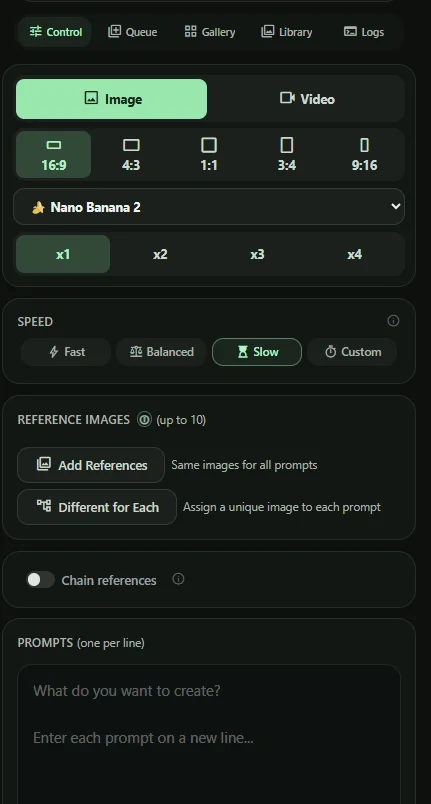
This screenshot is the supplied product UI. Available settings can change with your extension version and Google account.
Image generation
Select Image in the Control panel. The supplied UI shows these options:
- Aspect ratio: 16:9, 4:3, 1:1, 3:4 or 9:16.
- Model: Nano Banana 2.1, Nano Banana Pro or Nano Banana 2 Lite. Availability depends on your Google account.
- Images per prompt: x1, x2, x3 or x4.
Choose the settings you want before running a batch. Model access and generation availability depend on Google Flow.
Video generation
Select Video to access the video workflow. Video generation is part of Hola Flow, but the supplied screenshots show Image mode.
Detailed video models, duration, resolution and reference behavior will be documented after the Video panel is verified. Image settings should not be assumed to apply to video.
Batch prompts
Enter each prompt on its own line in the Prompts field. Set the generation options for the batch before starting it.
For example:
A studio photograph of a ceramic cup on a dark background
A close-up photograph of rain on a window
A wide photograph of a quiet mountain lake
The Queue helps you follow generation progress. Do not infer a free-plan allowance from a single account screenshot; the current account state in the extension is the relevant reference.
Reference images
The supplied Control panel labels this area Reference Images (up to 10). Choose Add References for the same images across all prompts.
Supported file formats, image-size restrictions and model-specific rules have not been provided. Follow the extension’s messages when adding files.
Different reference for each prompt
Choose Different for Each to assign a unique image to each prompt. This is the purpose stated in the supplied UI.
The assignment screen and exact ordering behavior have not been supplied, so this guide does not assume drag-and-drop, automatic matching or any particular upload order.
Chain references
The supplied panel contains a Chain references toggle. Its detailed behavior has not been verified.
Consult the in-extension help or support before relying on it for a production batch. A step-by-step guide will be added after the implementation is reviewed.
Queue
Open Queue to monitor generation jobs and batch progress. Check it when a batch appears stalled or a generation fails.
Specific queue actions and status labels will be documented when the Queue screen is available for review.
Gallery
The Gallery is the extension’s area for viewing and managing generated assets.
The detailed Gallery controls have not been supplied. This guide does not assume bulk deletion, export formats or cloud synchronization.
Library
Hola Flow includes a Library for working with relevant assets. Open the Library tab in the extension to see the available controls.
Storage location, retention and import behavior are awaiting product verification.
Speed / pacing
The Speed panel offers Fast, Balanced, Slow and Custom. These are the pacing choices for your workflow.
Select the preset that suits your use, or inspect Custom for the settings available in your extension. Exact delays and Custom fields have not been provided.
A faster preset does not bypass Google’s limits or guarantee shorter generation times.
Retry & recovery
Hola Flow includes automatic retry and recovery logic for temporary failures, helping processing continue with less manual attention.
Recovery is not guaranteed. Account restrictions, unavailable features or persistent service problems may still need intervention. Review the Queue and Logs before retrying work manually.
Downloads
Hola Flow automates downloading as part of the generation workflow. Check Chrome’s Downloads list and configured download location for your files.
Folder selection, naming rules and duplicate handling need verification from the extension. Keep Google Flow available while processing; do not assume downloads continue after the browser closes.
Logs
Open Logs to review diagnostic and activity information when something goes wrong. The product includes persistent logs for troubleshooting.
Before sharing a log, remove personal information, prompt content and any credentials or tokens. Log retention, export and deletion behavior have not yet been verified.
Troubleshooting
- Not connected: check that Google Flow is open and your Google account is signed in.
- Generation unavailable: confirm that your account has the required access and credits in Google Flow.
- A job keeps failing: review Queue and Logs, and check whether Google Flow itself can complete the request.
- Missing downloads: check Chrome’s Downloads list, download settings and any visible permission prompts.
If you need help, describe the steps, the mode and the visible error. Share redacted screenshots through Support.
Billing & Pro
Subscriptions are available in the Hola Flow extension. Open Hola Flow, sign in with Google, then click Get Pro → Continue to Checkout to start your purchase through Whop. Google Flow access and Google AI credits are separate.
The extension has Free and Pro account states. No universal Free allowance or exact entitlement split is asserted in this guide.
In the extension’s Pro section, choose Manage Subscription to open Whop. Use the subscription guide if you cannot access the extension. Production checkout is unavailable until the account-linked backend integration is verified.
Support
Visit Support for the Discord community, FAQ and billing assistance. The community includes Announcements, Help & Support, General and Suggestions.
Join the Hola Flow Discord community ↗ or email support for help.